Powering Elevator Businesses Worldwide
Trusted by Fastest-Growing Elevator Companies
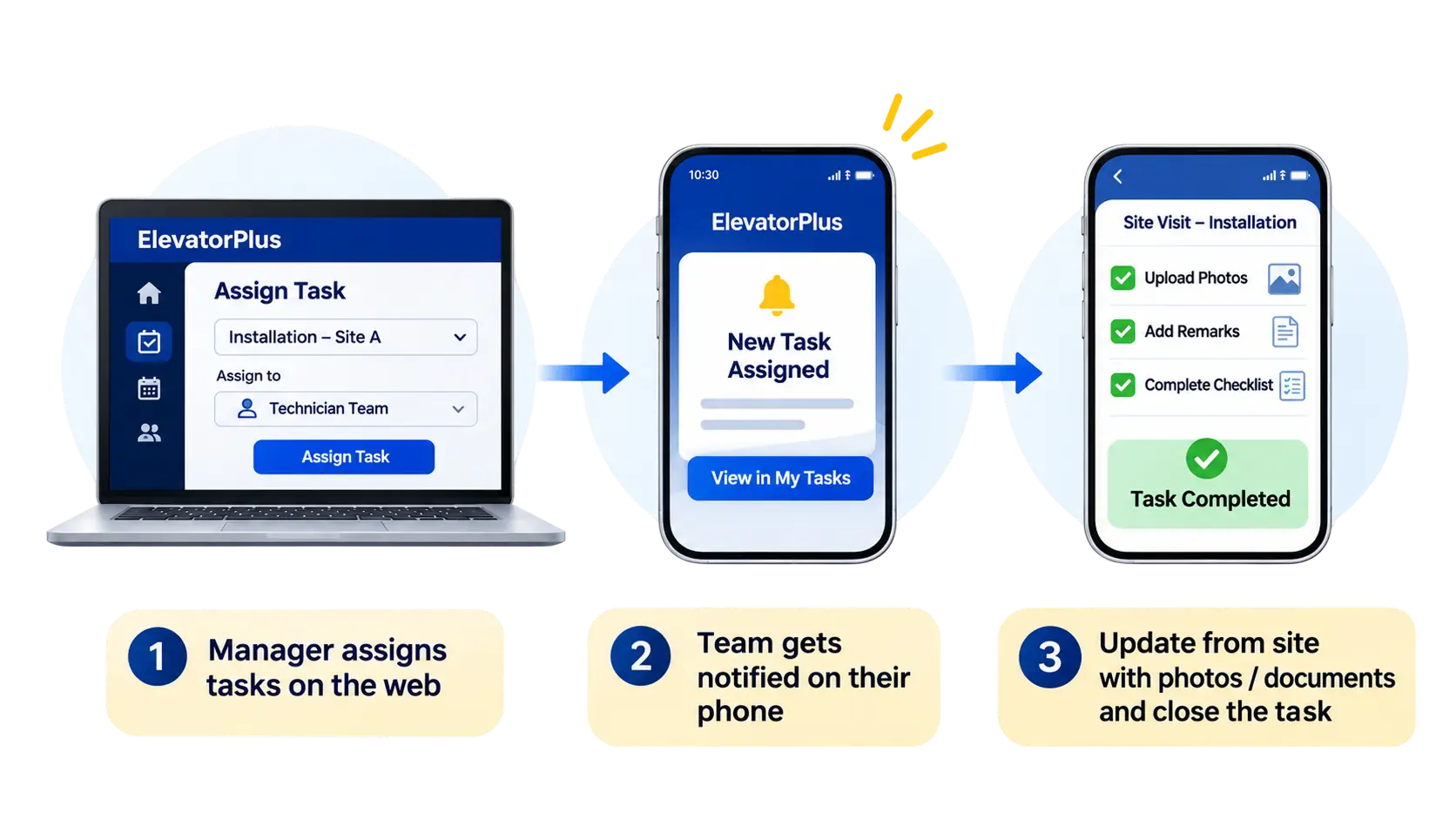
Assign from the web or the app. Your team is told on their phones. Every task is closed from site with a record of the work.
Trusted by Fastest-Growing Elevator Companies
Task Management in ElevatorPlus lets a manager assign tasks to one or more people from project planning on the web. Each person gets a notification on their phone, finds the task in My Tasks, posts updates with photos or documents, and marks it complete from site. Tasks that depend on another task stay locked until that one is done, and quality tasks are closed by filling a checklist. It was built from requests by our existing customers, mainly for installations, and works for any role.
To one or more people, from project planning
A notification on their phone, with the task waiting in My Tasks
A task that depends on another stays locked until that one is done
With photos, remarks or a checklist
An installation is dozens of tasks across several people. Some are your team's, some are in the customer's scope.
When those are tracked on calls and WhatsApp groups, nobody can say which task is late, who has it, or whether the one before it is finished.
For example
In project planning, click Add Team next to a task, tick the people and save. Their names show in the Assign To column.
Everyone on the task gets a notification on their phone, with the normal notification sound.
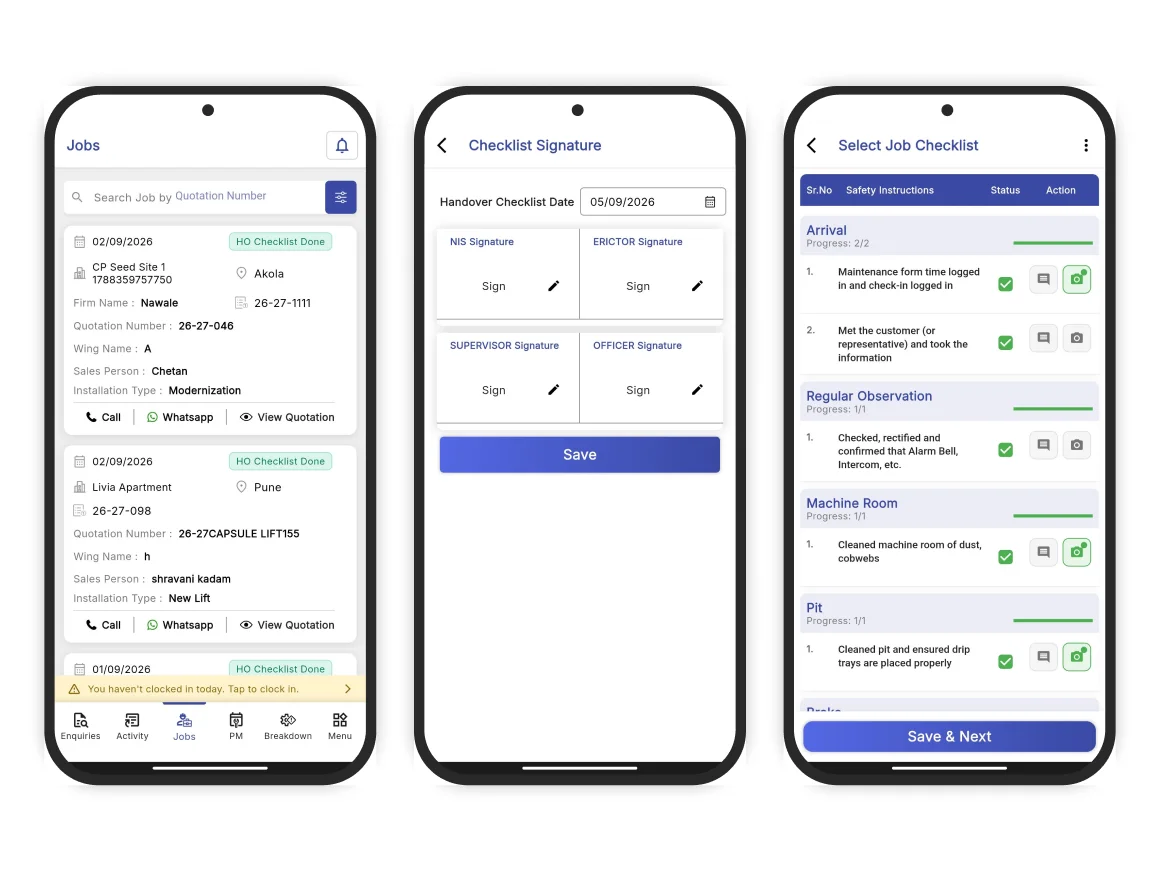
In Jobs, then My Tasks, each person searches their tasks or filters them: Ready to Start, All, Pending, Completed, Delayed and On Hold. Each card shows the stage, job number, site, dates and how many days are left.
Schedule, site, contact, and how many days a task is delayed. Notify Customer sends the customer an update on WhatsApp or by email.
Starts After shows the task that must finish first. Until it does, Mark Complete stays locked.
Add Remark takes up to five photos, videos, PDFs or documents with each update.
Mark Complete asks for confirmation, then for photos of the finished work and a remark.
Some tasks are closed by filling a checklist. The inspection checklist groups checkpoints by area and shows progress for each; pick a status for every checkpoint, add a note or a photo, and save to complete the task.
Tasks can also be created by role and by requirement, for any team.
A manager assigns them from project planning, on the web, in the mobile app or in the desktop view of the app, to one or more people at once.
Each person on the task gets a notification on their phone straight away, and the task waits in their My Tasks list.
Yes. Starts After links the task to the one that has to finish first, and Mark Complete stays locked until it does.
Each update can carry up to five photos, videos, PDFs or documents with a remark, and completing a task asks for photos of the finished work.
Yes. Quality tasks are closed by filling the inspection checklist, checkpoint by checkpoint, with a status, note or photo for each.
Yes. Notify Customer sends an update on WhatsApp or by email from the task itself.
No. Installation is where most customers use it, but tasks can be created for any role or requirement, and everything is configurable.
Delayed tasks are flagged with the number of days they are behind, and the Delayed filter lists them all.
Yes. Each stage is made up of tasks. A stage counts as complete only when every task in it is complete. Whether photos are compulsory is your choice, set per company.
Bring one live installation to the 30-minute Walk-Through and see its tasks set up.
Book the Walk-Through